ChimpMatic sends Contact Form 7 submissions straight to your Brevo lists. Connect with an API key, map your contact attributes, and choose whether Brevo confirms each subscriber by email. Setup takes a few minutes.
What you need
- A WordPress site with Contact Form 7 active
- ChimpMatic Lite 0.9.80 or newer
- A Brevo account (any plan, including free) with at least one contact list
Before you start: what actually flows from CF7 to Brevo
Whichever method you use, the core job is the same: on submit, the email address from your form creates or updates a contact in Brevo. Three things trip people up, so decide them before you connect anything.
- Brevo deduplicates by email. If the same address submits twice, Brevo does not create a second contact. It updates the existing one. That is usually what you want, but it means a later submission with blank fields can overwrite good data unless the connector only sends filled fields.
- A form submission is not the same as consent. Adding someone to a Brevo list because they sent you a contact message is not marketing opt-in. If you plan to email them campaigns, capture a real consent checkbox in CF7 and map it, or add them to a list you treat as transactional only. Brevo’s own double opt-in, when enabled on a list, is triggered by Brevo’s forms rather than by an API contact create, so contacts pushed from CF7 land as single opt-in unless the connector asks Brevo to send the confirmation.
- Attribute names must match. Brevo stores names in attributes called
FIRSTNAMEandLASTNAME, and the email address is the key. If your CF7 field isyour-nameand you do not map it, the name is silently dropped and you end up with a list of bare email addresses.
Get your Brevo API key
- Log in at app.brevo.com and click your profile name in the top-right corner.
- Open SMTP & API, then the API Keys tab.
- Click Generate a new API key, name it (for example “ChimpMatic”), and copy it. Brevo shows the key once, so copy it before closing the dialog.
Connect Contact Form 7 to Brevo
- In WordPress, edit the form under Contact → Contact Forms.
- Open the Chimpmatic tab and choose Brevo as the provider.
- Paste your API key and connect. Your Brevo lists load automatically.
- Select the list new contacts should join.
Map your form fields
Match each Contact Form 7 field to a Brevo contact attribute: the visitor’s email goes to the contact email, and fields like first name and last name map to attributes such as FIRSTNAME and LASTNAME. ChimpMatic Lite maps the required email plus up to four additional fields; Pro expands the mapping. Full details in the field mapping guide.
Direct subscribe or confirmation email
Per form, you decide how contacts enter the list: subscribe them directly the moment the form is submitted, or have Brevo send its confirmation email first so only verified addresses join. The confirmation template itself is managed in your Brevo account. See how double opt-in works across providers.
Test it
- Save the form and submit a test entry with a real inbox you control.
- In Brevo, open Contacts and confirm the new contact appears in the selected list with the mapped attributes filled.
- If you enabled the confirmation email, click the link in it and re-check the contact’s status.
Set this up on day one: spam. A public CF7 form connected to any Brevo integration will happily sync bot submissions into your list and inflate your contact count. Add a honeypot or CAPTCHA to the form before you connect it, not after you notice the junk.
Other ways to connect CF7 to Brevo
ChimpMatic is not the only route. Contact Form 7 ships its own Brevo module, Brevo publishes a WordPress plugin, and CRM connectors cover Brevo too. They are not interchangeable: they differ in whether you can route different forms to different lists, how much of your form data survives the trip, and how much else they bring along.
| Method | Cost | Per-form lists | Field mapping | Best for |
|---|---|---|---|---|
| ChimpMatic Lite (this guide) | Free | Yes | Email plus four fields, more in Pro | Different forms to different lists, mapped attributes, per-form consent |
| CF7’s built-in Brevo integration | Free | No, site-wide | Minimal | One form that only needs to capture contacts |
| Brevo’s official WordPress plugin | Free | Not applicable | Not applicable | Brevo’s wider toolset: its own forms, SMTP, campaigns |
| WP Fusion | Paid | Yes | Full | Brevo as a site-wide CRM across WooCommerce, memberships, LMS |
Contact Form 7’s built-in Brevo integration
Contact Form 7 ships first-party Brevo support, so no extra plugin is required. In Brevo, create an API key (v3) under Settings → SMTP & API. In WordPress, go to Contact → Integration, find the Brevo panel, paste the key, and save. Submitters are then added to your Brevo contacts.
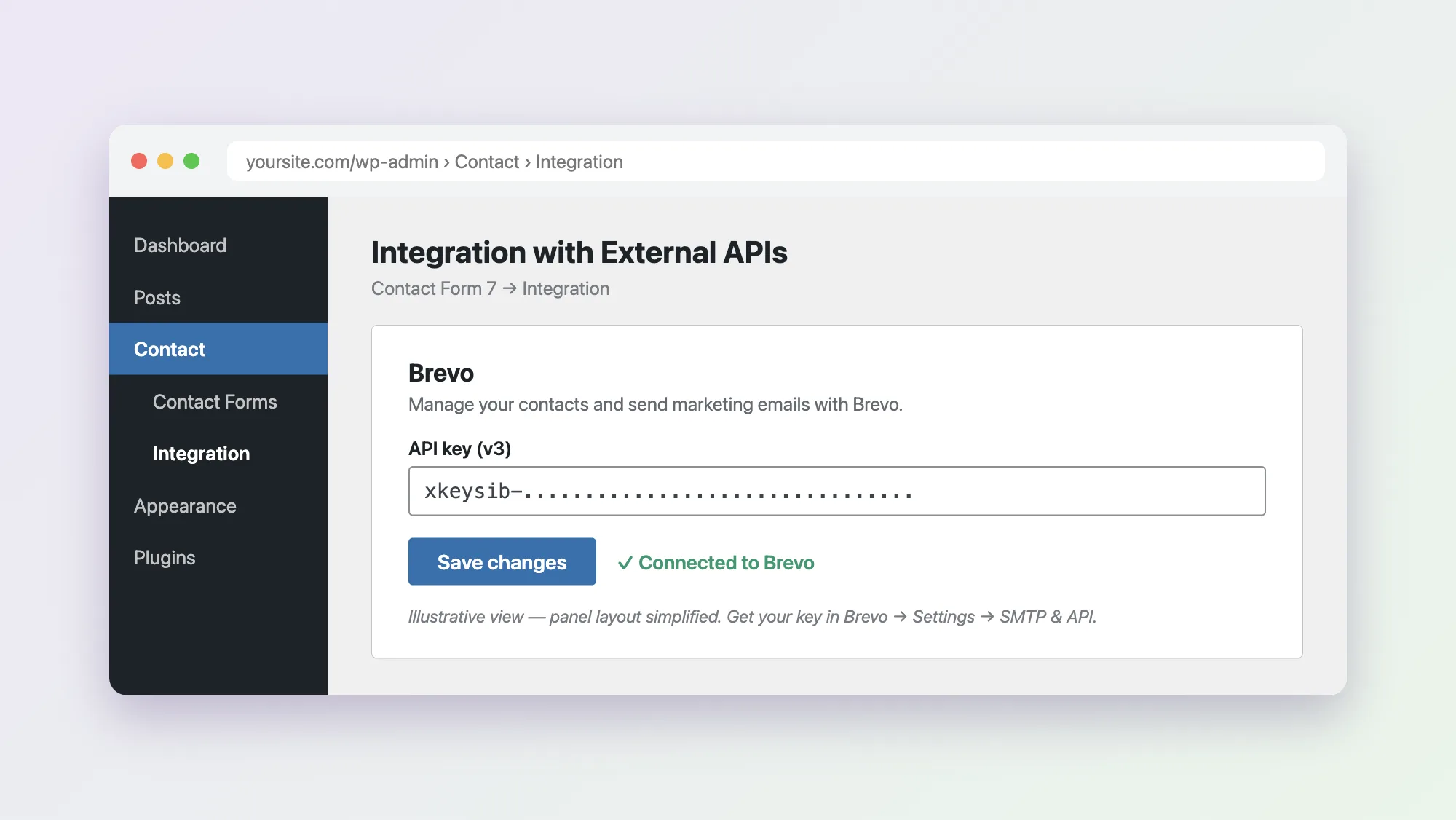
For one form that only needs to collect contacts, this is often enough. Two limits show up fast in real use. First, the connection is site-wide: one API key, one behavior, so a newsletter form and a support form cannot feed different lists. Second, field mapping is minimal, so anything beyond email and a name tends not to make it across. Both are the reason ChimpMatic’s per-form tab exists.
Brevo’s official WordPress plugin
Brevo maintains its own plugin, Brevo, Email, SMS, Web Push, Chat. It is less a CF7 connector and more the full Brevo toolset inside WordPress: Brevo’s own subscription forms, transactional email over Brevo SMTP, and campaign stats. Its most useful role alongside CF7 is actually SMTP, routing WordPress mail through Brevo so your form notification emails stop landing in spam. Run it for that, and keep a CF7 integration for the contact sync.
WP Fusion
WP Fusion is a paid connector that syncs WordPress user data with marketing platforms, Brevo included. It is the heavyweight option: tags, automations, and syncing far beyond contact forms, including memberships, WooCommerce, and LMS activity. Worth the license when Brevo is your CRM of record across the whole site. For a couple of contact forms it is more machinery than the job needs.
Which one should you pick?
Count your forms. One form, and you only need the email address: CF7’s built-in module is enough. More than one form, or any field beyond email that you actually want in Brevo, and you need per-form mapping, which is what this guide sets up. If Brevo is your CRM across the whole site rather than a form destination, look at WP Fusion.
Coming from Mailchimp? Many teams run both during a migration. Here is why people are switching, and if you keep some forms on Mailchimp, the CF7 to Mailchimp setup guide covers that side.
Common problems, and the fixes
- Contacts are not appearing in Brevo. Check the API key is a v3 key and that the form points at a real list. A valid key with no list selected connects fine but files contacts nowhere useful.
- Contacts appear, but names and fields are blank. The form fields are not mapped to Brevo attributes. CF7’s built-in integration maps little by design, so switch to per-form mapping if you need the data.
- Duplicates you did not expect. You will not get duplicate contacts, because Brevo keys on email, but you can get one contact whose fields flip-flop if different forms send conflicting values. Send only the fields each form actually collects.
- Form notification emails go to spam. This is a mail-delivery problem, not a sync problem. Route WordPress mail through SMTP so the notifications authenticate properly.
FAQ
Does Contact Form 7 work with Brevo?
Yes. CF7 includes a first-party Brevo integration under Contact, then Integration, connected with a Brevo v3 API key. ChimpMatic adds per-form list selection, attribute mapping, and per-form consent on top.
Does this work with the free Brevo plan?
Yes. The integration uses Brevo’s standard API, available on every plan.
Can different forms feed different Brevo lists?
Yes. The Chimpmatic tab is configured per form, so each form can target its own list, or even a different provider entirely.
Does adding a CF7 submitter to Brevo count as opt-in?
No. Creating a contact through the API is not marketing consent. If you intend to send campaigns, collect a consent checkbox in your form and map it, or keep those contacts on a transactional-only list.
Why is Contact Form 7 not sending emails?
Usually it is the server’s mail function rather than CF7. Shared hosts often block or misroute PHP mail. The standard fix is sending over SMTP, which also improves deliverability.
Where does my data go?
On submission, the email address, mapped fields, destination list, and consent choice go directly from your server to Brevo’s API. See external services for the full disclosure.
Also available: Mailchimp, MailerLite, and Klaviyo integrations, or head back to all integrations.