Installing Chimpmatic Pro takes just a moment. In fact, most users install Chimpmatic Pro and connect Contact Form 7 to Mailchimp in under two minutes. This guide walks you through every step — from downloading the plugin to verifying it is active on your WordPress site.
Before You Begin
Before you install Chimpmatic Pro, make sure your WordPress site meets these requirements:
- WordPress 5.0 or higher. Chimpmatic Pro requires a modern WordPress installation.
- Contact Form 7 installed and active. Chimpmatic Pro extends Contact Form 7 — it does not work without it.
- PHP 7.4 or higher. Most hosting providers run PHP 8.x by default, so this is rarely an issue.
Additionally, you need an active Chimpmatic Pro license. If you do not have one yet, visit the Chimpmatic Pro features page to choose a plan.
Step 1: Install Chimpmatic LITE
Chimpmatic Pro requires the free LITE version as its base. In other words, LITE provides the core framework, and Pro unlocks the advanced features on top of it.
To install Chimpmatic LITE:
- In your WordPress dashboard, go to Plugins > Add New.
- Search for “Chimpmatic” or “Contact Form 7 Mailchimp Extension”.
- Click Install Now, then click Activate.
Alternatively, you can download the LITE plugin directly from WordPress.org and upload the ZIP file manually through Plugins > Add New > Upload Plugin.
Step 2: Download Chimpmatic Pro
After purchasing a license, log in to your Chimpmatic account page. From there, download the chimpmatic.zip file. Specifically, look for the download link under your active orders.
Furthermore, keep this ZIP file saved on your computer. You will need it for updates as well, or you can re-download the latest version from your account at any time.
Step 3: Upload and Activate Chimpmatic Pro
Now upload the Pro plugin to your WordPress site:
- Go to Plugins > Add New > Upload Plugin.
- Click Choose File and select the
chimpmatic.zipfile you downloaded. - Click Install Now.
- After the upload completes, click Activate Plugin.
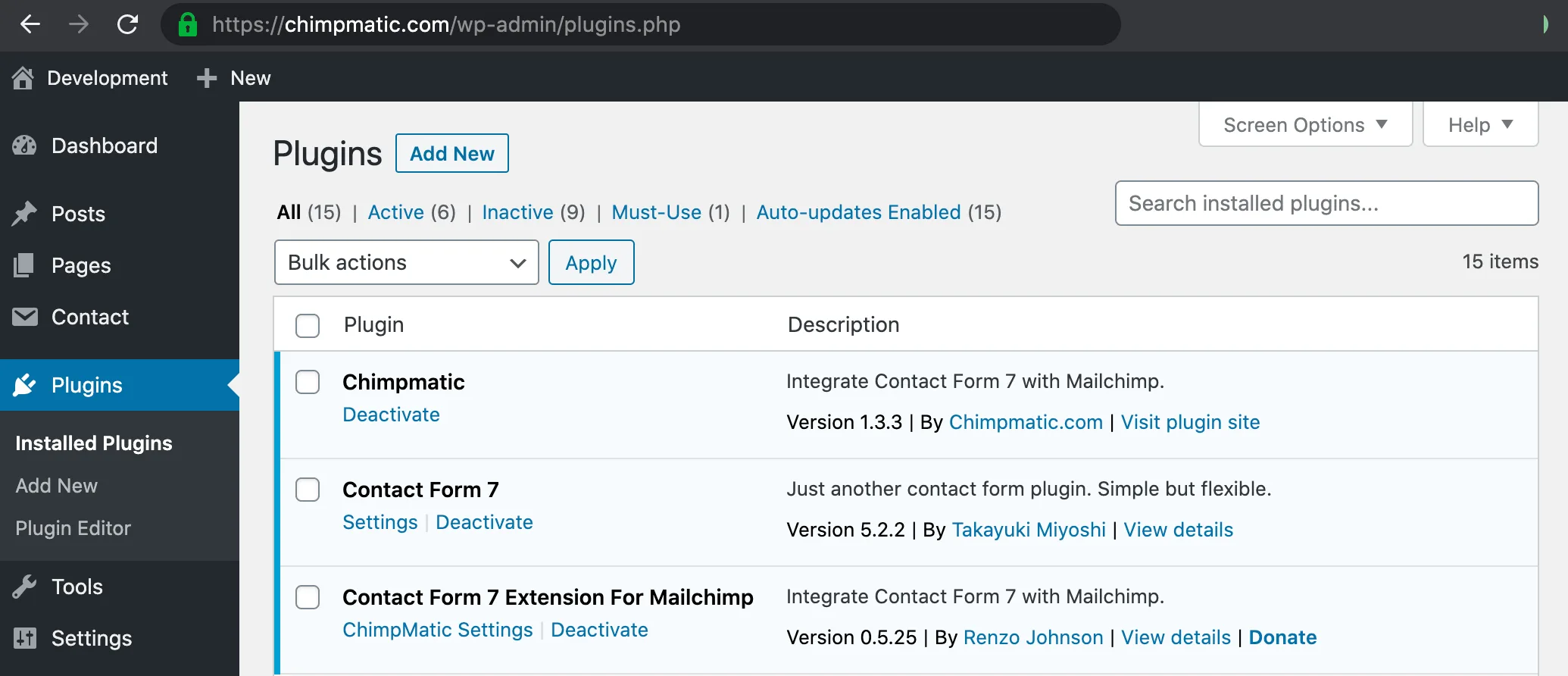
As a result, you should see both Chimpmatic LITE and Chimpmatic Pro listed on your Plugins page. Most importantly, install and activate in this exact order — LITE first, then Pro.
Step 4: Verify the Installation
After activation, verify that Chimpmatic Pro is working correctly:
- Go to Contact > Contact Forms in your WordPress dashboard.
- Open any existing form or create a new one.
- Click the Chimpmatic tab in the form editor.
If the Chimpmatic tab appears with all Pro settings — including custom fields, tags, groups, and GDPR consent options — the installation is successful. Consequently, you are ready to connect your form to Mailchimp.
Connecting to Mailchimp
With Chimpmatic Pro installed, the next step is connecting your Contact Form 7 forms to your Mailchimp audience. You will need your Mailchimp API key for this step.
For a complete walkthrough, see Connect Contact Form 7 to Mailchimp. If you need help finding your API key, see How to Get Your Mailchimp API Key.
Troubleshooting Installation Issues
However, if the Chimpmatic tab does not appear after activation, check the following:
- LITE not activated. Chimpmatic Pro requires LITE to be active. Go to Plugins and confirm both plugins show as “Active.”
- Contact Form 7 missing. Chimpmatic extends CF7. If CF7 is not installed, the Chimpmatic tab will not appear in the form editor.
- Plugin conflict. Deactivate other plugins one by one to check for conflicts. In particular, other Mailchimp plugins like MC4WP can interfere with Chimpmatic.
- PHP version too old. Check your PHP version under Tools > Site Health > Info > Server. Specifically, PHP 7.4 or higher is required.
- File permissions. If the upload fails, your server may have restrictive file permissions. Contact your hosting provider to verify that WordPress can write to the
wp-content/pluginsdirectory.
If none of these steps resolve the issue, use our Live Help feature for direct support — no bots, real humans.
Next Steps
- Connect Contact Form 7 to Mailchimp — full Mailchimp connection guide.
- How to Get Your Mailchimp API Key — find your API key in Mailchimp.
- Chimpmatic Pro Features — see all Pro features including tags, groups, and GDPR consent.
- Chimpmatic LITE on WordPress.org — official free plugin listing.
After installing Pro, the connector docs are at Chimpmatic — the Contact Form 7 Mailchimp plugin.