Mailchimp Default Audience Fields: What They Are, Why They Exist, and How to Use Them
When you create a new audience in Mailchimp, the platform automatically generates a set of default fields for every contact. These fields are the foundation of your email marketing data structure. Understanding what they are, why Mailchimp chose them, and how they behave is essential before you start connecting forms, importing subscribers, or personalizing campaigns.
This guide breaks down everything you need to know about Mailchimp’s default audience fields.
How Many Default Fields Does Mailchimp Create?
Five. Every new Mailchimp audience is created with exactly 5 pre-built fields, also known as merge fields or audience fields. These fields exist in the audience database immediately — you do not need to create them manually.
According to Mailchimp’s official developer documentation:
Merge fields with the tags
*|FNAME|*,*|LNAME|*,*|ADDRESS|*, and*|PHONE|*are present by default when an audience is created.
Combined with the required Email Address field, that gives you 5 fields total from the moment your audience exists.
The 5 Default Fields Explained
Here is every field that Mailchimp creates automatically when you set up a new audience:
| # | Field Name | Merge Tag | Data Type | Required? | Visible on Signup Form? |
|---|---|---|---|---|---|
| 1 | Email Address | *|EMAIL|* |
Yes (always) | Yes | |
| 2 | First Name | *|FNAME|* |
Text | No | Yes |
| 3 | Last Name | *|LNAME|* |
Text | No | Yes |
| 4 | Address | *|ADDRESS|* |
Address | No | No (hidden) |
| 5 | Phone Number | *|PHONE|* |
Phone | No | No (hidden) |
Field 1: Email Address
The only field that is always required. Without an email address, a contact cannot exist in Mailchimp. This field cannot be deleted, renamed, or made optional. Every contact in your audience must have a unique email address.
Field 2: First Name (FNAME)
A text field that stores the subscriber’s first name. It appears on the default signup form but is not required — subscribers can leave it blank and still subscribe. This field is the most commonly used merge tag in email marketing for personalization (e.g., “Hello *|FNAME|*”).
Field 3: Last Name (LNAME)
A text field that stores the subscriber’s last name. Like First Name, it appears on the signup form but is not required. It is used for full-name personalization, formal correspondence, and CRM integrations.
Field 4: Address (ADDRESS)
A structured address field that stores a complete mailing address including street address, city, state, zip code, and country. This field exists in the database but is hidden from signup forms by default. It is a compound field — when populated via the API, it requires specific sub-fields (addr1, city, state, zip).
Field 5: Phone Number (PHONE)
A phone number field that supports both international and US formats. Like Address, this field exists in the database but is hidden from signup forms by default. It uses international format unless you specifically configure it for US formatting on the Audience Fields and Merge Tags page.
Why Did Mailchimp Choose These 5 Fields?
Mailchimp’s choice of default fields is not arbitrary. Each field serves a specific purpose in the email marketing ecosystem:
Email Address — The Foundation
Email marketing cannot function without an email address. This is the only truly mandatory piece of data. Every feature in Mailchimp — campaigns, automations, segmentation, transactional emails — depends on having a valid email address for each contact.
First Name and Last Name — Personalization
The single most effective email personalization technique is addressing subscribers by name. Studies consistently show that personalized subject lines and greetings increase open rates and engagement. Mailchimp includes these fields by default because they enable the most common personalization pattern: Hello *|FNAME|*.
These fields are visible on the signup form but not required. This is a deliberate design choice. Requiring a name increases friction on signup forms, which reduces conversion rates. Making them optional but visible gives subscribers the opportunity to provide their name without being forced to.
Address — Legal Compliance
The United States CAN-SPAM Act requires that every commercial email include a valid physical mailing address. Mailchimp handles this at the account level (your business address appears in email footers), but the Address field exists so you can also collect subscriber mailing addresses for:
- Geographic segmentation (targeting campaigns by region)
- Location-based content (local events, store locations)
- E-commerce shipping
- Direct mail integration
This field is hidden by default because most newsletter signup forms do not need to collect a physical address. Asking for a full mailing address on a blog newsletter signup form would dramatically reduce signups.
Phone Number — SMS Marketing Readiness
Mailchimp has expanded beyond email into SMS marketing. The Phone field exists so users can collect phone numbers for:
- SMS marketing campaigns
- Two-factor authentication workflows
- Customer support contact information
- Multi-channel marketing strategies
This field is hidden by default because collecting phone numbers on an email signup form is inappropriate for most use cases and would significantly reduce form completion rates.
Only Email Is Truly Required
This is one of the most important things to understand about Mailchimp audience fields:
The only fields that Mailchimp requires are the email address field for email contacts, and the SMS phone number field for SMS contacts. Other fields are optional, but may be necessary for personalization, segmentation, or other features.
This means:
- A contact can be added to your audience with only an email address
- First Name and Last Name are not required — subscribers can leave them blank
- Address and Phone can remain completely empty
- The only exception is if you manually mark a field as required in your audience settings
When connecting a web form to Mailchimp via the API, you only need to send an email address to successfully create a subscriber. All other fields are optional data that enriches the contact profile.
Audience Field Limits
Mailchimp enforces specific limits on audience fields:
| Limit | Standard Plans | Premium Plan |
|---|---|---|
| Maximum fields per audience | 30 | 80 |
| Maximum value per field | 255 bytes (usually 255 characters) | |
| Maximum field label length | 50 bytes (usually 50 characters) | |
Audiences are limited to a maximum of 30 data fields for each contact. If you want more than 30 fields of information about your contacts, use groups to help consolidate audience fields, or use tags instead. Mailchimp accounts on a Premium plan can map up to 80 fields.
Since 5 fields are created by default, standard plans have room for 25 additional custom fields. If you need to store more data about your contacts, Mailchimp recommends using tags (labels you apply to contacts) or groups (interest-based categories) instead of creating more audience fields.
Available Field Types for Custom Fields
When you create a new audience field in Mailchimp (beyond the 5 defaults), you can choose from the following data types:
- Text
- Subscribers provide typed responses. Limited to 255 bytes. Good for short answers like company name, job title, or preferences. The default First Name and Last Name fields use this type.
- Number
- Stores any number, such as age, employee count, or an ID number. Do not use this for phone numbers or zip codes — use the dedicated field types instead.
- Radio Buttons
- Subscribers choose exactly one option from a predefined list. Can be used to create groups in your audience. Predefined options include gender, days of the week, months, US states, and world countries.
- Checkboxes
- Subscribers select one or more options from a list. This field type always creates a group in your audience. There is a 60-group limit per audience.
- Drop Down
- Subscribers choose exactly one option from a drop-down menu. Similar to Radio Buttons but with a different visual presentation. Can also create groups.
- Date
- Stores a full date including month, day, and year. Supports both US (
MM/DD/YYYY) and international (DD/MM/YYYY) formats. - Birthday
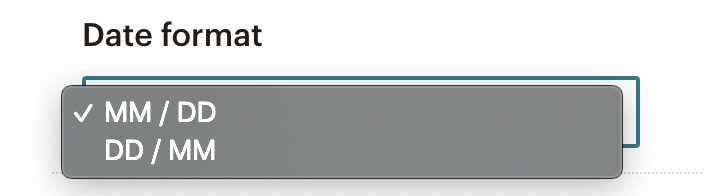
- Stores month and day only (no year). Choose from
MM/DDorDD/MMformat. Used for annual birthday automations. - Address
- A compound field storing street address, city, state, zip code, and country. Enables geographic segmentation. Each line of the address must be fewer than 45 characters.
- Zip Code
- Stores 5-digit US zip codes only. For international postal codes, use an Address or Text field instead.
- Phone
- Stores a phone number in either international or US format.
- Website
- Stores a full URL. Generates HTML link code. Must include the complete URL.
- Image
- Stores an image URL. Can be used to display personalized images or avatars in emails.
Important: Once you create a field, its data type cannot be changed. If you chose the wrong type, you must delete the field and create a new one with the correct type. Deleting a field permanently removes all data stored in that field for every contact.
Default Merge Tag Values: The Safety Net
Not every subscriber will have data in every field. If you use *|FNAME|* in an email and a subscriber’s First Name field is empty, they will see a blank space where their name should appear. This creates awkward emails like “Hello , welcome to our newsletter!”
Mailchimp solves this with default merge tag values — fallback text that appears when a field is empty.
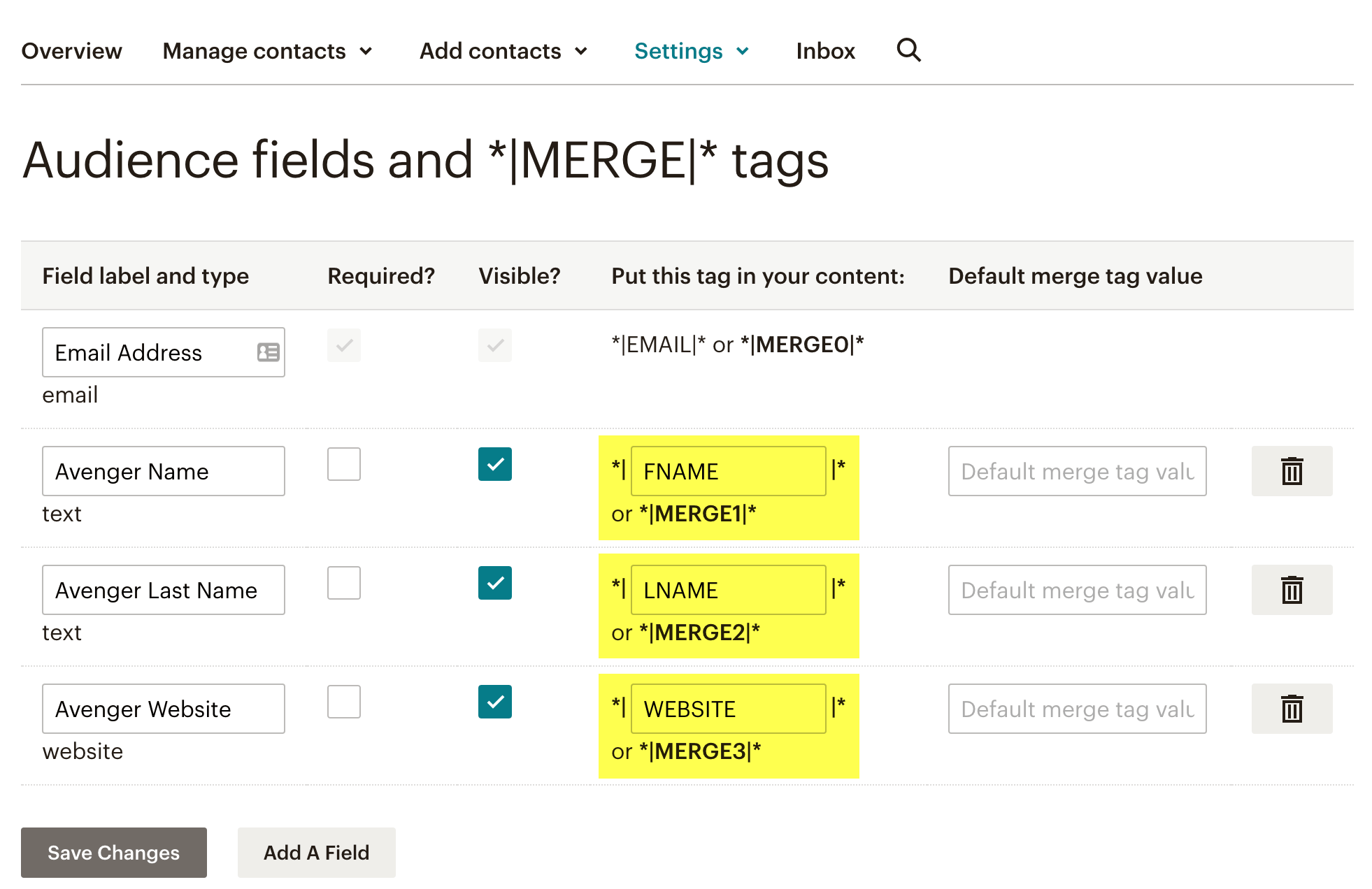
When you use merge tags to personalize your email, it’s a good idea to set default values to display for recipients who don’t have any data for that field. For example, you could set the default value for your first name merge tag to “Friend.” When you use “Hello *|FNAME|*,” in an email, we’ll display “Hello Friend” for recipients whose first names aren’t in the system.
How to Set Default Values
There are two ways:
- From Audience Settings: Go to Audience → More Options → Audience Fields and Merge Tags → Click the three-dot icon next to a field → Edit → Enter default text in the “Default merge tag value” field.
- From the Form Builder: Go to Forms → Manage Forms → Click an existing field → Field Settings tab → Enter text in the “Default merge tag value” field.
Recommended Default Values
| Field | Suggested Default | Result If Empty |
|---|---|---|
| First Name | there | “Hello there” instead of “Hello “ |
| Last Name | (leave blank) | Avoids odd fallback text in formal greetings |
| Company | your company | “How is your company doing?” instead of “How is doing?” |
Note: Default values are available for all fields except the required Email Address field and the Address field. Default values for Image fields display as text only, not images.
Common Mistakes to Avoid
Mistake 1: Thinking Hidden Fields Don’t Exist
The Address and Phone fields are hidden from the signup form, but they exist in your audience database. Data can be written to them via API, import, or by making them visible on your form. Don’t create duplicate fields because you didn’t realize they were already there.
Mistake 2: Making Too Many Fields Required
Every required field you add to your signup form reduces conversion rates. Email marketing best practice is to collect the minimum data needed at signup, then progressively collect more data over time through preference centers, surveys, and behavioral tracking.
Mistake 3: Assuming Merge Tags Work Across Audiences
Each Mailchimp audience has its own set of merge tags. If you have multiple audiences, the merge tags may differ. A tag that works in one audience may not exist in another. Always verify your merge tags match the audience you’re sending to.
Mistake 4: Not Setting Default Merge Tag Values
If you use *|FNAME|* without a default value, subscribers who didn’t provide their name see a blank space. Always set defaults for any merge tag you use in campaign content.
Mistake 5: Deleting Fields Instead of Hiding Them
When you delete a field from your audience, all data stored in that field is permanently erased for every contact. If you just want to remove a field from your signup form, hide it instead of deleting it. Mailchimp recommends backing up your audience before deleting any fields.
Mistake 6: Ignoring the 30-Field Limit
Standard Mailchimp plans allow a maximum of 30 fields per audience. With 5 already used by defaults, you have 25 custom fields available. Plan your data structure carefully. Use tags and groups for categorical data instead of creating new fields for everything.
How This Works with Contact Form 7 and Chimpmatic
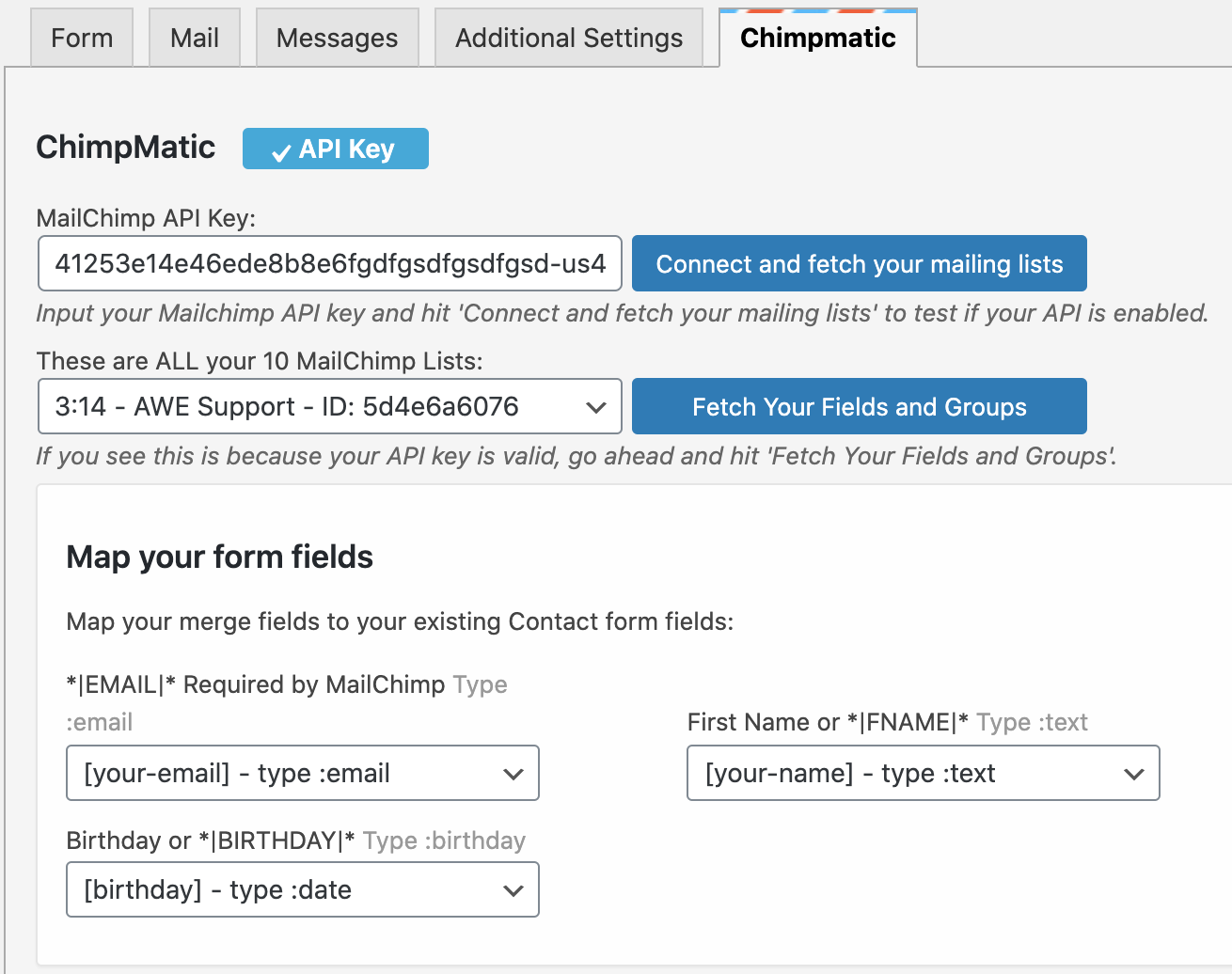
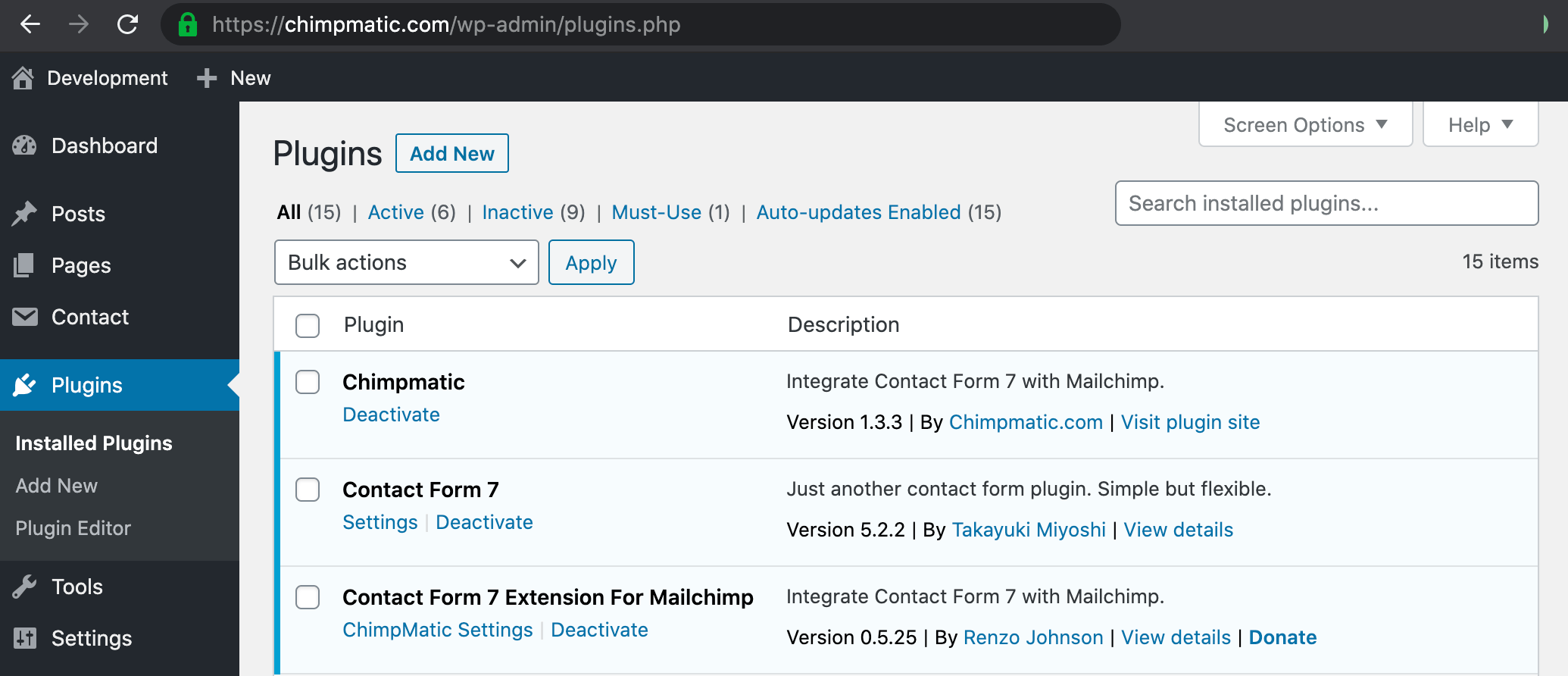
When you use Chimpmatic to connect Contact Form 7 to Mailchimp, your CF7 form fields are mapped to Mailchimp audience fields. Understanding the default fields makes this process much smoother.
The Default Fields Are Already There
You do not need to create FNAME, LNAME, ADDRESS, or PHONE in Mailchimp before mapping your CF7 fields. They already exist in every audience. Chimpmatic can map to them immediately.
Hidden Fields Accept Data Via API
Even though Address and Phone are hidden from Mailchimp’s signup form, Chimpmatic sends data through Mailchimp’s API — not through the signup form. This means Chimpmatic can write data to hidden fields without any issues. You do not need to make fields visible for Chimpmatic to populate them.
Custom Fields Require Setup in Mailchimp First
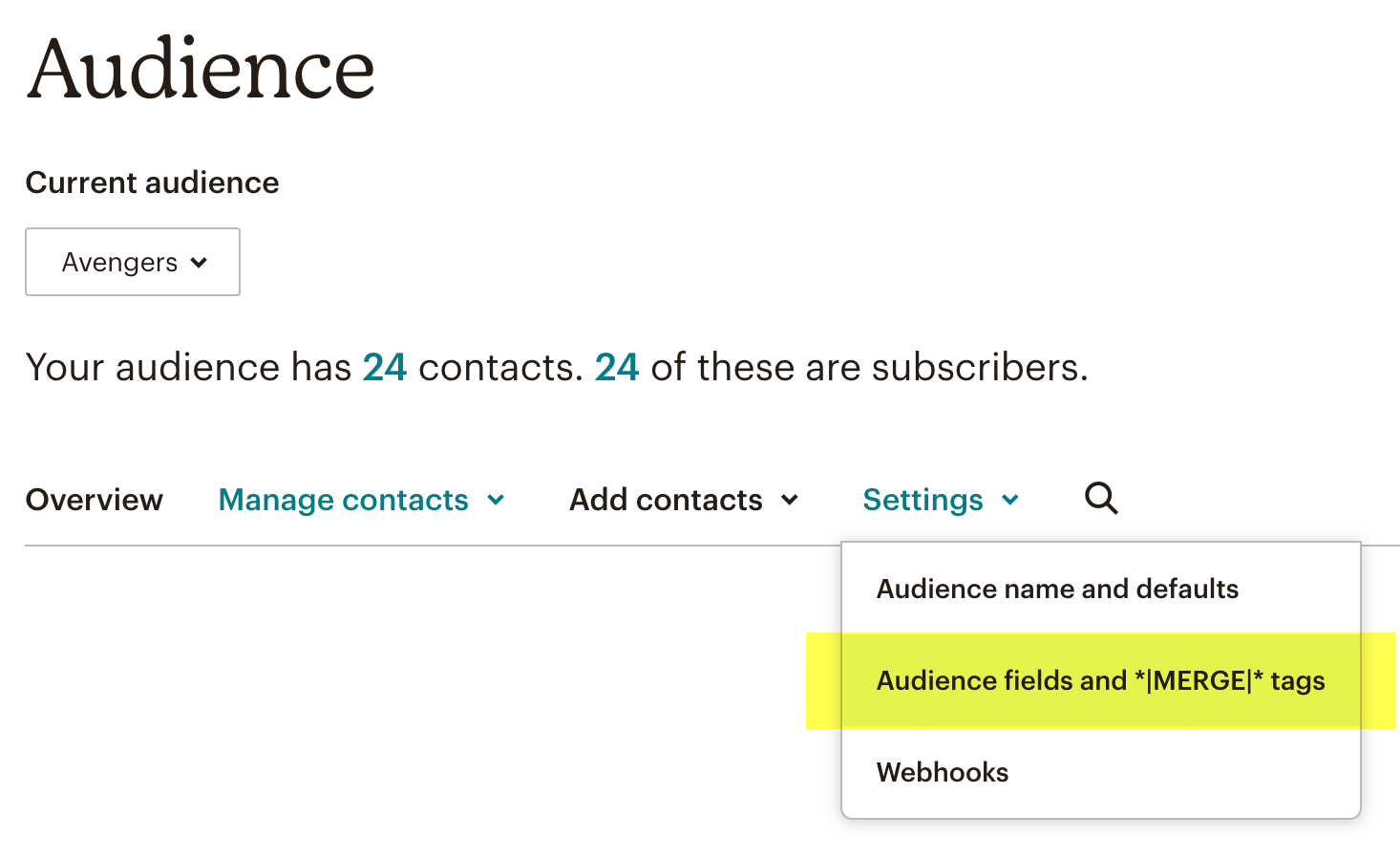
If your Contact Form 7 form collects data beyond the 5 defaults — such as Company Name, Birthday, Website, or any custom field — you need to create that audience field in Mailchimp before Chimpmatic can map to it. Here’s how:
- Log in to Mailchimp
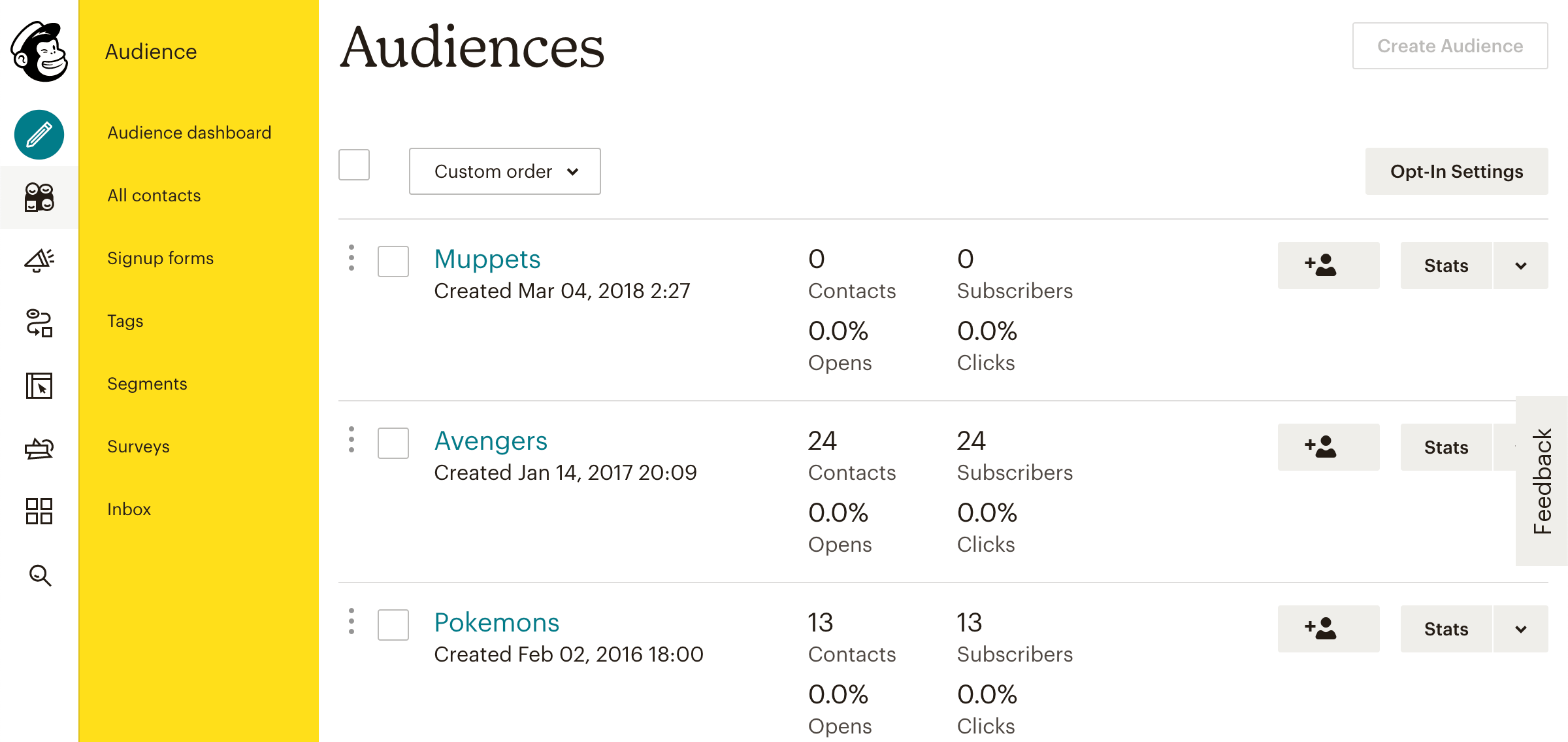
- Go to Audience → All Contacts
- Click Settings → Audience Fields and *|MERGE|* Tags
- Click Create a New Field
- Choose the appropriate data type, enter a label, and save
- Return to Chimpmatic settings in WordPress and map your CF7 field to the new Mailchimp field
Only Email Is Required for a Successful Submission
Chimpmatic can successfully subscribe a contact to your Mailchimp audience with just an email address. All other fields — First Name, Last Name, Address, Phone, and any custom fields — are optional. If your CF7 form only has an email field, the subscription will still work.
Watch the 30-Field Limit
If you are running complex forms with many custom fields, keep the 30-field audience limit in mind. Each custom field you create in Mailchimp counts toward this limit. For large data sets, consider using Mailchimp tags (which Chimpmatic also supports) instead of creating additional audience fields.
Frequently Asked Questions
Can I rename the default merge tags?
Yes. You can rename default merge tags in your Audience Fields and Merge Tags settings. However, Mailchimp reserves certain field names, and renamed tags may not work with integrations that expect the standard tag names. The default tags (FNAME, LNAME, ADDRESS, PHONE) are editable, so you should not assume every audience uses these exact tags.
Can I delete the default fields?
You can delete First Name, Last Name, Address, and Phone. You cannot delete the Email Address field. Remember that deleting a field permanently removes all data stored in that field for every contact in your audience.
What happens if I create an audience with the API?
The same 5 default fields are created automatically. Whether you create an audience through the Mailchimp web app or the API, the result is the same.
Do all Mailchimp plans get the same default fields?
Yes. Free, Essentials, Standard, and Premium plans all get the same 5 default fields. The only difference is the maximum number of total fields: 30 for standard plans, 80 for Premium.
Why does the Address field require specific sub-fields?
The Address field is a compound (structured) field. When populated via the API, it requires addr1, city, state, and zip as separate values, with addr2 and country being optional. This structure enables Mailchimp’s geographic segmentation features — you can target campaigns based on state, city, or zip code because the data is stored in a structured format rather than a single text string.
What’s the difference between the Phone field and the SMS Phone Number field?
The default *|PHONE|* field is a general-purpose phone number field for contact information. The SMS Phone Number field is a separate, dedicated field that is specifically tied to Mailchimp’s SMS Marketing program. You need the SMS Phone Number field (not the default Phone field) to send SMS marketing campaigns. The SMS Phone Number field only becomes available after you set up an SMS marketing program in your Mailchimp account.
Can I have more than one audience?
Yes, but Mailchimp recommends maintaining one primary audience and using tags, segments, and groups to organize your contacts within it. Each audience is independent — contacts appearing in multiple audiences count as separate contacts toward your billing total. The default fields are created independently for each audience.